
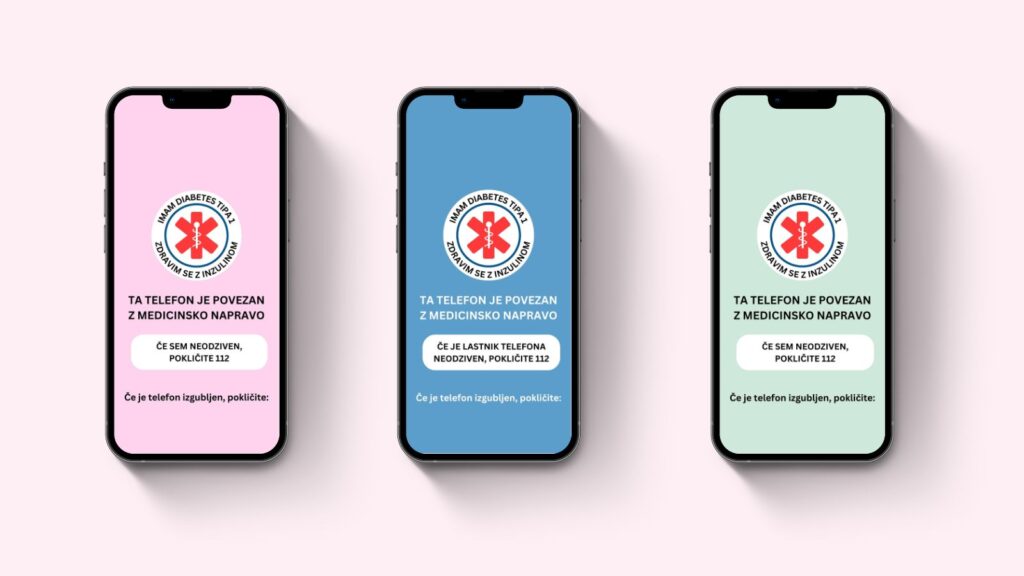

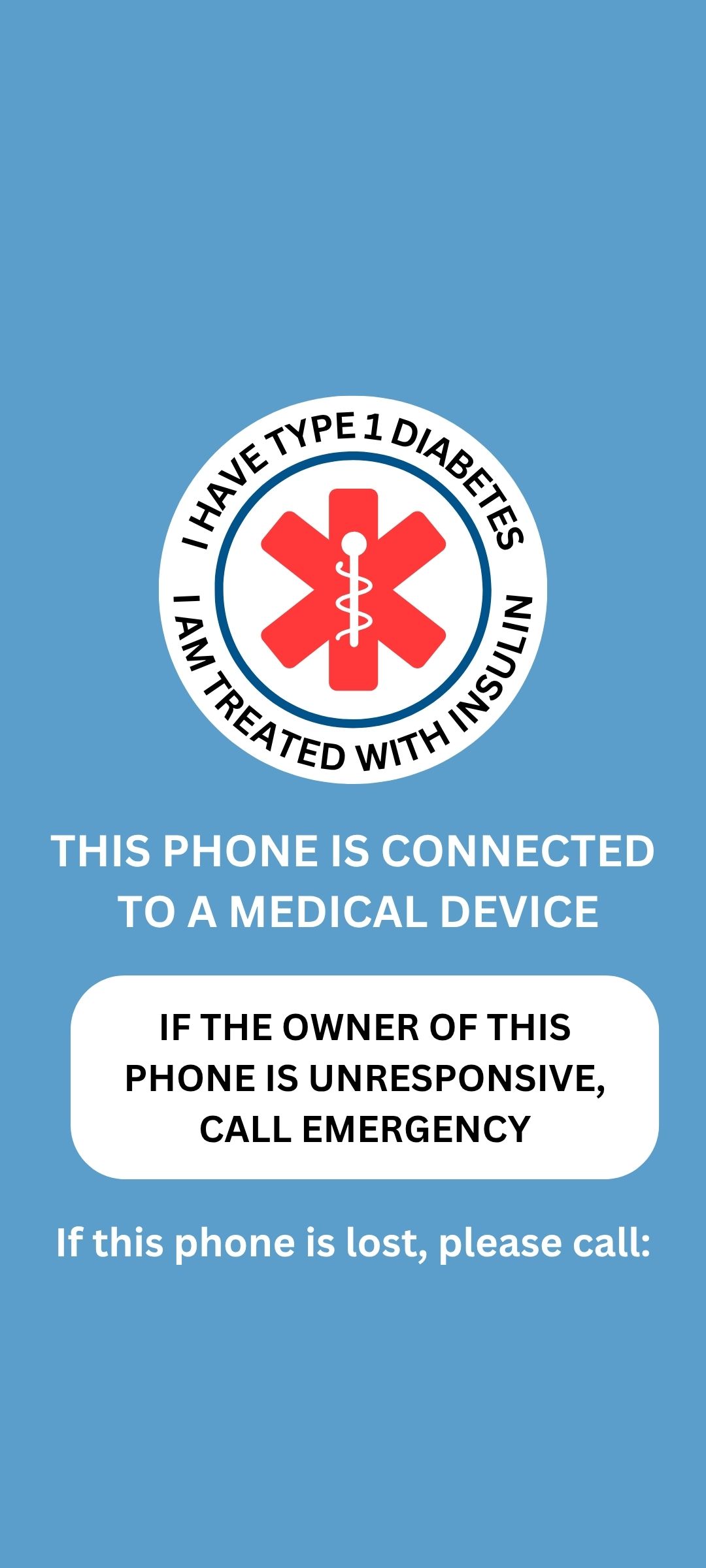
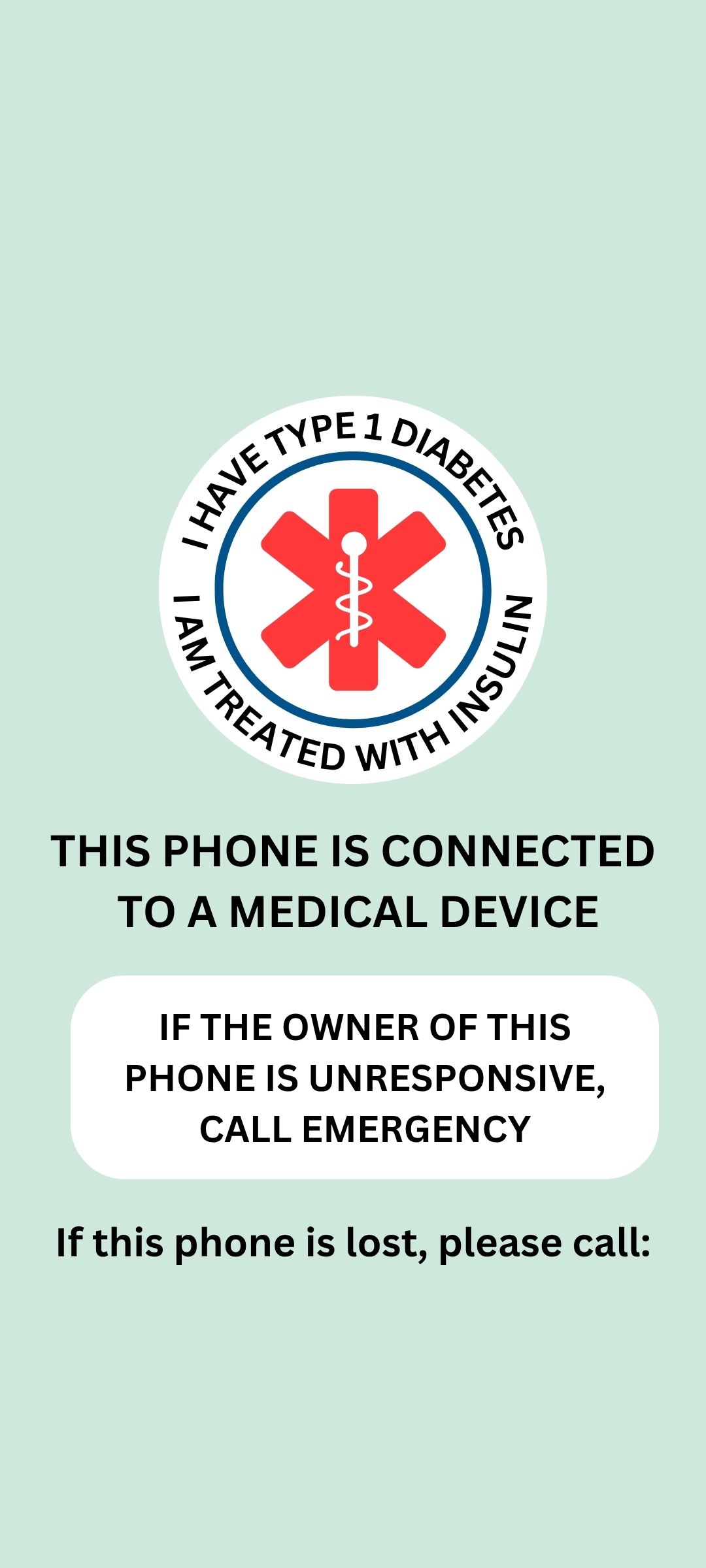
HOW TO CUSTOMISE AND SET THE IMAGE
 Android – How to Add Your Phone Number and Set the Image as Your Lock Screen
1. Open Gallery (Photos) on your phone.
2. Select the image you want to use.
3. Tap Edit (the pencil icon).
4. Select Text, enter the phone number to call if the phone is lost, and position it at the bottom of the image.
5. Save the edited image.
6. Tap the menu (⋮) or More options.
7. Select Set as wallpaper.
8. Select Lock screen.
9. Adjust the position of the image if needed and confirm by tapping Set wallpaper.
 iPhone (iOS) – How to Add Your Phone Number and Set the Image as Your Lock Screen
1. Open the Photos app.
2. Select the image you want to use.
3. Tap Edit.
4. Select Markup (the pencil icon).
5. Tap + and select Add Text, then enter the phone number to call if the phone is lost.
6. Tap Done and save the edited image.
7. Tap Share (the square with an arrow pointing up).
8. Select Use as Wallpaper.
9. Adjust the image as needed.
10. Tap Set and select Set as Wallpaper Pair or the option to set it as your Lock Screen.